
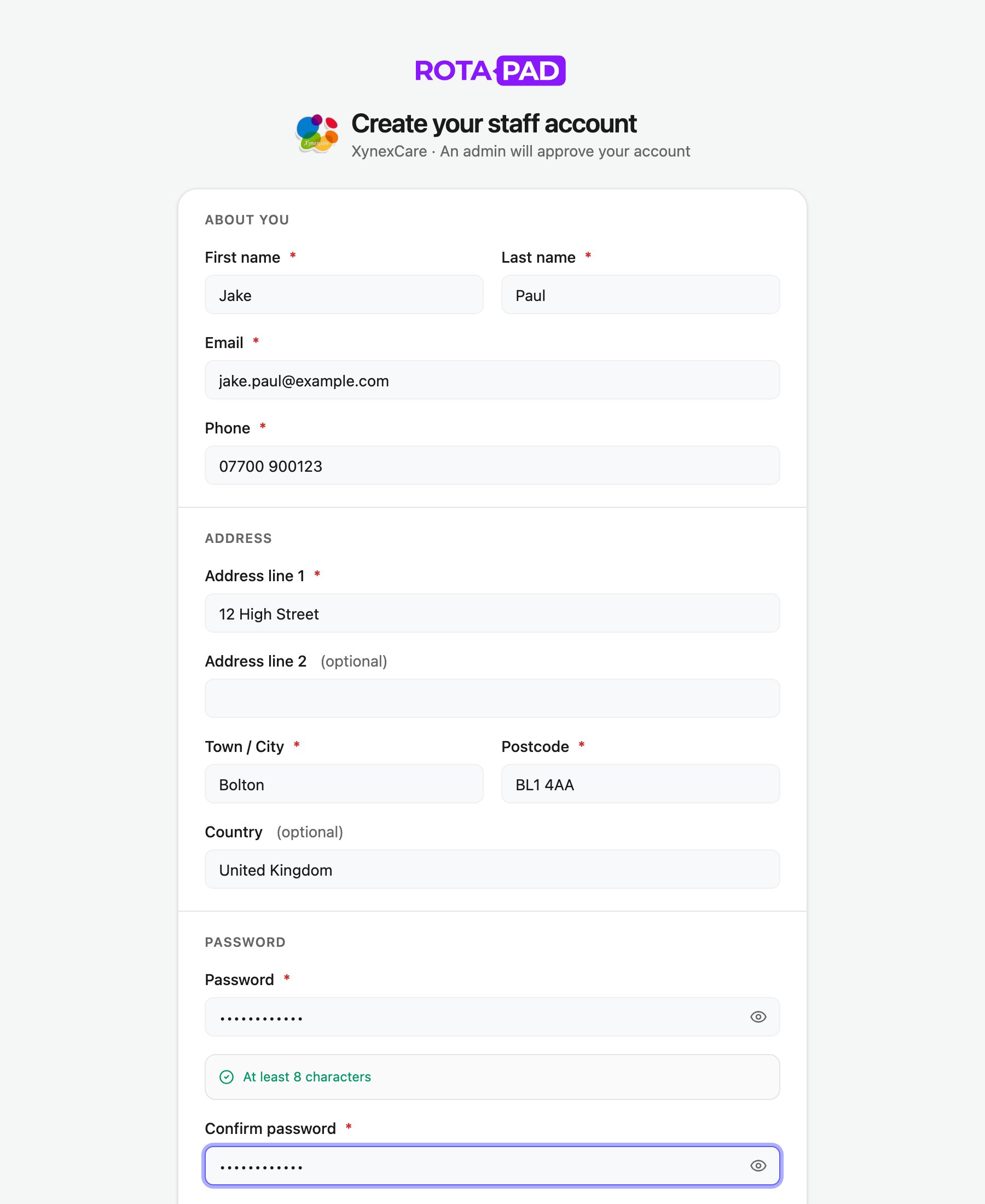
Register
1
Open the registration page
Go to your organisation’s RotaPad address followed by
/register. Your manager can send you the link.2
Fill in your details
Enter your name, email, phone number and address. Address line 2 and Country are optional.
3
Choose a password
The checklist under the password ticks off each rule as you type. Submit registration stays greyed out until every rule is met.
4
Submit
Click Submit registration. You’ll see a confirmation and get an email saying your registration was received.
Password rules
The rules shown in the checklist come from your organisation’s sign-in settings, for example a minimum length or a number. Passwords that have appeared in known data breaches are also refused. If that happens, you’ll see a message under the password box. Choose a different one.After you register
If something goes wrong
An account with this email already exists
An account with this email already exists
You already have an account. Sign in instead, or ask your manager to reset your password.
A registration with this email is already waiting for approval
A registration with this email is already waiting for approval
You’ve already registered. Wait for the approval email.
Too many registrations from this network
Too many registrations from this network
A lot of people have registered from the same network (for example the office Wi-Fi) in the last hour. Wait an hour and try again, try from your phone’s mobile data, or ask your manager to add you.